


WiFi Ping Tester
3.81.00 Reviews
App Specs
- Version
- 1.0.6
- Updated On
- License
- Free
- Downloads
- 10,000+
- Developer
- Online tech 4
- Categories
- Tools
- Platform
- Android
Screenshots
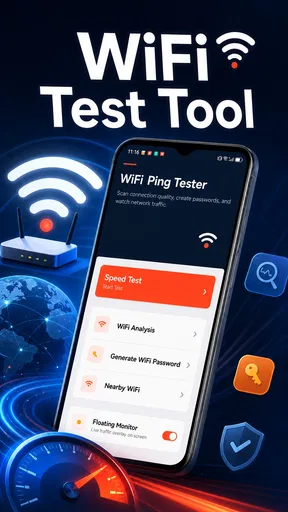
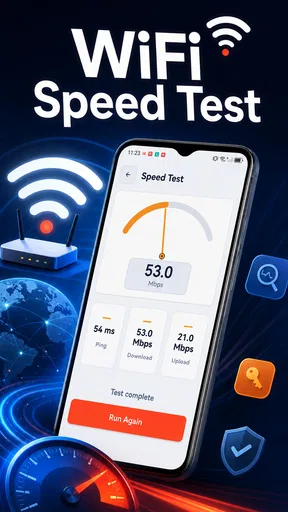
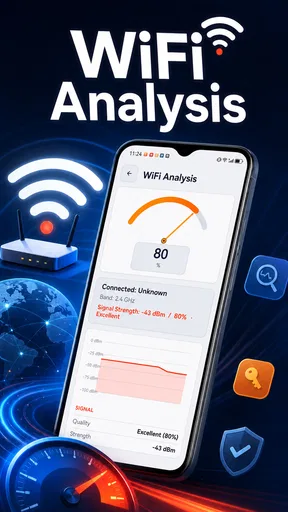
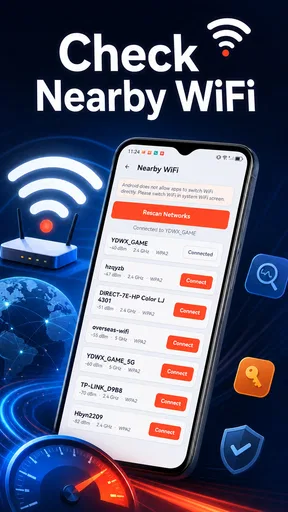
 Analysis by AppCompare
I like small utility apps that solve one practical problem without turning a simple check into a complicated project. WiFi Ping Tester, from Online tech 4, takes that approach by focusing on two jobs: checking network ping speed and looking at the condition of a Wi-Fi signal. I tested it with that narrow purpose in mind, and my overall impression is that it can be useful when I want a quick indication of whether my connection is responding well, rather than a full technical report.
This is a free tools app for Android, aimed at Everyone, and its current version is 1.0.6. It has passed the early discovery stage with over ten thousand installs, although its average rating sits at 3.8 from roughly two dozen ratings. That combination tells me to approach it as a practical, still-developing utility rather than a mature network-analysis suite. It is easy to try, but I would not expect it to replace specialist tools for advanced troubleshooting.
What using WiFi Ping Tester feels like today
The main strength is its directness. When a video pauses, a game feels delayed, or a web page takes too long to react, the first question is often whether the Wi-Fi connection is actually slow or whether the problem lies elsewhere. A ping test gives a useful clue by showing how quickly a network responds. The signal-status view adds another piece of context, helping me judge whether the phone is receiving a weak or unstable wireless connection.
The most useful habit is to treat the result as a clue, not a verdict. A good ping does not guarantee that every service will perform perfectly, and a weak signal does not automatically mean the internet connection itself is poor. The app is most valuable when I compare its result with what I am doing at the same time: standing near the router, moving to another room, opening the affected service, or repeating the check after other devices stop using the network.
That makes it particularly approachable for people who do not want to learn networking terminology. I can open a focused tool, run a check, and use the result to decide whether moving closer to the router is worth trying. For a household user, that is often enough. It also gives me a more sensible starting point than immediately restarting every device or blaming the internet provider.
A realistic home troubleshooting routine
Imagine that a video call begins freezing from a bedroom while it works normally in the living room. I would first run the signal check in the living room, then repeat it in the bedroom without changing anything else. If the signal becomes noticeably poorer farther away, the likely issue is wireless coverage or interference in that part of the home. I could then test near the router and compare the ping response before deciding whether the problem follows the phone, the room, or the wider connection.
This simple comparison is more informative than running one isolated test. It also prevents a common mistake: assuming that a weak result proves the broadband service is at fault. The app cannot turn a single reading into a complete diagnosis, but it can help narrow the search when I use it at different locations and during different activities.
Worth Reading Before You Choose

EA SPORTS FC Mobile 26 Is a Bigger Football Game, but It Takes Time

Flipboard Shows What News Apps Must Do Beyond the Feed

Switching to Android Auto Means Rethinking Your Driving Routine

Google Calendar Makes a Crowded Week Easier to Manage

Ludo King Makes the Most of the Minutes Between Plans

Baby Panda World Brings Quick Play to Modern Phones, but Its Game Library Feels Busy
What the current release does well
Version 1.0.6 gives the app a clear identity instead of trying to become an all-purpose network toolbox. I appreciate that focus because many network utilities bury a basic connection check under lists of technical details. Here, the intended workflow is easier to understand: check response speed, inspect Wi-Fi signal status, and use both observations together.
The compact scope also makes it suitable for occasional use. I would install it when helping a family member understand why one room has worse connectivity, checking a suspiciously sluggish home network, or comparing a phone’s experience in two locations. I would not need to keep it open every day, and that is not a weakness by itself. A utility can be worthwhile even when I only need it during a specific problem.
The developer, Online tech 4, has kept the presentation centered on the two advertised checks. That is a sensible direction for an early version. The app’s public reception is still modest, so I would judge it mainly by whether the results help me make a decision, not by expecting the polish or depth of a long-established networking product.
How the release matters to existing users
For someone already using an earlier build, the current version is best understood as the present reference point rather than proof of a dramatic redesign. The confirmed release information identifies version 1.0.6 and a release date of July 30, 2026. I would therefore look at this build as an active point in the app’s development, while keeping expectations realistic about how much history or refinement a relatively young utility may have.
That distinction matters because a version number alone does not tell me whether the app has gained advanced diagnostics, changed its presentation, or improved its measurement method. I would not assume any of those things without seeing them directly. What I can say from using the current product is that its value remains tied to quick ping and Wi-Fi-status checks, not to a large collection of specialist network functions.
For existing users, the practical question is whether the current workflow is already enough. If the app is being used for occasional room-to-room comparisons or a quick look at responsiveness, the focused design should remain easy to understand. If the user expected detailed history, router administration, device discovery, or a deep explanation of every network condition, this release is unlikely to satisfy that broader need.
Three smarter ways to use the results
My first tip is to repeat a test under controlled conditions. Keep the phone in the same place, close the activity that is causing trouble, and run the check again. Then compare the result while the problem is happening. This does not create laboratory-grade evidence, but it helps separate a temporary burst of congestion from a consistently weak connection.
My second tip is to compare positions rather than collecting one impressive-looking number. Test beside the router, in the problem room, and at the place where the phone is normally used. The difference between those locations can be more useful than the absolute reading because it shows whether distance or obstacles are influencing the experience. This is where the signal-status portion earns its place beside ping testing.
My third tip is to use the app before and after a change, not only when something goes wrong. If I move the router, switch rooms, or alter how I use the network, I can repeat the same checks and see whether the situation appears to improve. I would still verify the outcome by using the affected app or service, but WiFi Ping Tester provides a consistent reference for the comparison.
There is also a useful trade-off in this approach. A quick test is convenient, but it can encourage overconfidence. Network response changes with the destination, traffic, wireless conditions, and the moment of testing. A result that looks fine while browsing may not explain a problem in a particular online game or video meeting. I use the app to guide the next step, then confirm that step in the activity that originally exposed the problem.
Where it falls short compared with broader alternatives
WiFi Ping Tester is not the right choice if I need a complete map of the home network. A broader network analyzer may be better for identifying connected devices, examining channels, checking local addresses, or reviewing a longer sequence of measurements. A router’s own administration app may also provide more useful information about coverage, connected clients, and configuration.
It is also a limited fit for someone who needs ongoing monitoring. The app’s appeal is the quick, manual check. If I want alerts, charts over time, exportable records, or detailed diagnostics for a support ticket, I would choose a more specialized solution. Those alternatives are more demanding, but their extra detail can justify the added complexity when the problem is persistent.
Even for everyday troubleshooting, I would avoid using a single ping result to decide that the internet provider is responsible. The test can indicate delayed response, while the signal view can suggest a local wireless issue, but neither observation alone explains every cause. A wired test, another device, or the service’s own behavior may be needed to isolate the source. That is not a failure of this app; it is the boundary of a focused mobile check.
Questions I would ask before installing it
Can it help with a weak Wi-Fi signal? Yes, that is one of its intended uses. I would use the signal-status information to compare locations and identify whether the phone’s wireless reception changes around the home. I would not interpret it as a complete survey of every room or as a replacement for dedicated coverage equipment.
Can it explain why an online game or call is lagging? It can provide useful evidence about network response and signal condition, but it cannot by itself identify every source of lag. I would run the check during the problem, repeat it in another location, and then compare the result with the actual game or call. That workflow makes the reading more meaningful.
Is it suitable for beginners? I think so, especially for someone who wants a quick check instead of a technical dashboard. The narrow purpose is easier to understand than a large collection of unfamiliar network terms. Beginners should still remember that the readings are indicators, not guaranteed explanations.
Does it replace a router app or a professional network tool? No. It is better viewed as a first-response utility. Router software and specialist analyzers are preferable when I need device management, configuration controls, historical evidence, or deeper diagnosis. This app makes more sense when I want a fast answer to “is the connection responding normally here?”
Will it be useful to advanced users? It can be useful as a convenient first check, particularly when testing a phone in different places. However, advanced users will probably want more context and measurement options than this focused app is designed to provide. Its simplicity is an advantage for quick checks and a limitation for detailed investigations.
Who should use it, and who should skip it?
I would recommend trying it if you want a free, lightweight way to investigate everyday Wi-Fi complaints. It suits renters, families, students, and anyone who needs to compare a strong room with a troublesome one without immediately changing equipment. It is also a reasonable first tool for explaining a network problem to someone who finds technical utilities intimidating.
I would skip it if your main goal is network administration or long-term performance tracking. It is not the best match for diagnosing a complex office network, producing formal measurements, or managing connected hardware. In those situations, the usual alternatives provide more context even if they take longer to learn.
The Everyone age rating and free price make experimentation straightforward, and the minimum operating-system requirement is Android 10. That gives the app a fairly modern compatibility target, so I would check the phone’s software before attempting installation. Once installed, I would keep the workflow simple: test, compare, repeat after a change, and avoid treating one result as final proof.
What I would watch as the app develops
Because the current product is version 1.0.6 and its audience is still relatively small, I would watch for improvements that make repeated testing more useful without losing the straightforward interface. Clearer context around readings, better ways to compare locations, and practical history would all strengthen the app’s role in real troubleshooting. Those are areas I would hope to see, not features I am claiming are already present.
I would also pay attention to how the developer handles the balance between simplicity and depth. Adding every possible network measurement could make the app harder for ordinary users, while adding no guidance could leave beginners unsure what to do with the result. The best evolution would help users move from a reading to a sensible action: relocate, retest, compare another device, or investigate the router.
My final view is positive but measured. WiFi Ping Tester is a useful first stop for quick Wi-Fi response and signal checks, not a complete network laboratory. I like it when I need a focused answer during an everyday connectivity problem, especially when I can compare several locations and test before and after a change. I would recommend it to people who value simplicity and a free trial, while steering advanced users toward broader tools. For its current stage, that focused purpose is its clearest strength, and its limited diagnostic depth is the main trade-off to understand before installing it.
Pros
- Quickly checks whether a device is reachable on the local network.
- Simple interface makes basic ping tests easy for beginners.
- Useful for spotting unstable Wi‑Fi connections and packet loss.
- Helps compare response times between different network devices.
- Small
- lightweight app with minimal impact on device storage.
Cons
- Results can vary significantly with network congestion or signal strength.
- Advanced diagnostics such as traceroute may not be included.
- Some features may require advertising or in-app purchases.
- Ping tests cannot measure overall internet speed or Wi‑Fi quality.
- Incorrect targets can produce confusing results for inexperienced users.
FAQs for WiFi Ping Tester
What is WiFi Ping Tester used for?
WiFi Ping Tester is designed to check the responsiveness and stability of a Wi-Fi or internet connection. After entering or selecting a destination, the app sends ping requests and displays details such as response time, latency, packet loss, and connection reliability. It can help identify slow network responses, intermittent connectivity, or problems affecting online gaming, video calls, and browsing.
Does WiFi Ping Tester measure my internet speed?
WiFi Ping Tester primarily measures latency and connection stability rather than download or upload speed. Its ping results show how quickly data travels to a server and returns, which is especially useful for gaming and real-time communication. If you need complete speed information, including bandwidth and throughput, you may need to use a separate internet speed-testing application.
Can I use WiFi Ping Tester to troubleshoot my home network?
Yes. The app can be useful when investigating connection problems at home, at work, or on public Wi-Fi. By testing different destinations, you can compare local network responsiveness with internet performance. Consistently high ping times may indicate distance, congestion, router issues, or a weak wireless signal, although the results should be considered alongside other network diagnostics.
Is WiFi Ping Tester suitable for checking gaming performance?
WiFi Ping Tester can provide a helpful indication of whether your connection has high latency or packet loss, both of which may cause lag during online games. However, its results may not exactly match the latency to a particular game server. For the most accurate assessment, test a destination located near the game’s servers and repeat the test at different times of day.
Does WiFi Ping Tester require special permissions or mobile data?
The app generally needs network access to send ping requests and receive responses. Depending on the version and platform, it may work over Wi-Fi, mobile data, or either connection, so users should review the permission requests shown during installation. Testing over mobile data can consume a small amount of data, while blocked networks may prevent some ping requests from completing.


